Build, export and flash firmware
Build
Start Docker and save your project. Save and build runs the complete flow; Build uses the last saved revision. Builds use temporary containers and persistent caches to reduce repeat downloads.
Follow the current stage and logs in the bottom panel. You may keep editing during a build: its snapshot remains tied to the saved revision that started it.
Export
After a successful build, choose Export firmware and select a folder. A toast confirms the completed export and shows the destination. Cancelling the folder selector does not report success.
Build history lets you recover previous artifacts. Check the revision and target before flashing.
UF2 flashing
Choose Flash firmware to open the step-by-step wizard. The progress bar shows the current stage, and Previous step lets you review earlier choices before sending.
- Choose half. Select the half you will connect, then choose Next step.
- Connect. Follow your controller's bootloader instructions. A single detected volume is selected automatically. If several are present, choose one, or use Select volume manually. Continue with Next step once a volume is selected.
- Send. Review the selected half, bootloader drive and firmware filename. Choose Send firmware to start the transfer. Navigation is disabled while it is sending; if a detected drive disappears before sending, the wizard returns to the connection step.
- Result. Wait for the keyboard to restart and test the new layout. The result distinguishes a completed file transfer, an unconfirmed final write and an interrupted copy. Use Flash next half to start the next half, or Finish after all targets have been sent.
Each screen shows only the controls for its current step. Advancing requires a selected half or drive, as appropriate. Nothing is sent until you explicitly choose Send firmware on the review screen. The app selects the artifact associated with the target. A completed copy confirms transfer, but you must verify the firmware’s behavior on the keyboard. Bootloader entry is manual.
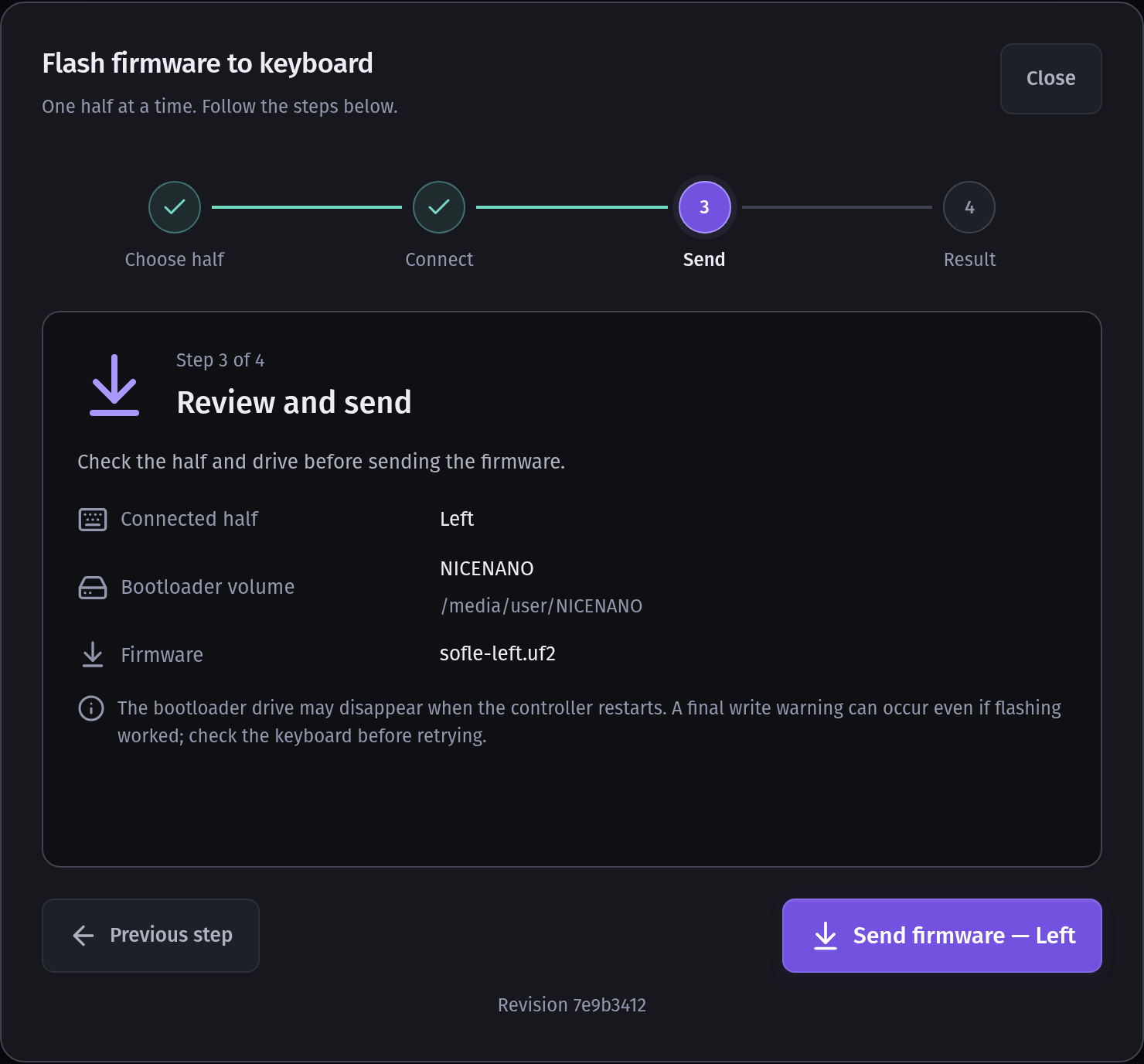
Example of step 3: review the target, firmware and build revision before choosing Send firmware.
Restart and final write warnings
UF2 bootloaders can restart automatically after receiving firmware, removing their USB drive before the operating system finishes its final write confirmation. On SuperMini nRF52840, the project author observed a working keyboard after the app reported:
sync /media/user/NICENANO/sofle-right.uf2: input/output errorThis can also happen when copying a UF2 through a file manager. It is consistent with a bootloader restart, but the error alone does not prove that flashing succeeded. UF2 bootloaders can reset once their blocks have been transferred.
When the full file copy returns successfully but the final sync or close fails, the app displays Transfer not confirmed in an amber panel. The original system error is under Technical details. The selected half is not marked as sent automatically.
- Wait for the keyboard to restart, reconnect normally if necessary and test the new layout. If it works, choose Keyboard works — confirm. The half is marked Confirmed by you, and you can continue to the other half.
- If it does not work, choose Reconnect and retry, enter bootloader mode again, check the selected half and drive, and send again.
- If the copy itself is interrupted, the app reports an error. It does not offer the final-write confirmation flow for an incomplete copy.
The app does not retry or declare the keyboard functional based only on the drive disappearing.
Windows USB drives
On Windows, put the connected half into bootloader mode and wait for its UF2 drive to appear in Explorer. The app discovers local drives through Win32 and checks INFO_UF2.TXT against the selected controller. If discovery misses it, select the drive root manually, such as E:\. Choose the connected half explicitly; the drive alone cannot identify left versus right. Flashing copies directly from the Windows app to the drive, without Docker USB passthrough. Physical Windows keyboard validation is still pending.